Bot Commands
Every slash command and menu screen the bot puts in front of you. The AI does the trading work in the background — these are the views you tap into.
Slash Commands
| Command | What it does |
|---|---|
/start | Opens the main menu — Wallet, Portfolio, Referral, Settings, Help. Always your home button. |
/wallet | Your balance card with frozen USD value, copyable addresses, and quick buttons to generate or import a wallet. |
/portfolio | Total value across every chain plus a per-asset breakdown. Updated as deposits land and trades close. |
/settings | Language, notification preferences, and your custom referral code. Changes apply on the next message from the bot. |
/info | Quick rundown of what the bot does and the chains it covers right now. |
/referral | Your unique referral link, signup count, and earnings. Share the link, earn cashback when invitees trade. |
/help | Command reference and direct link to support. |
In the chat
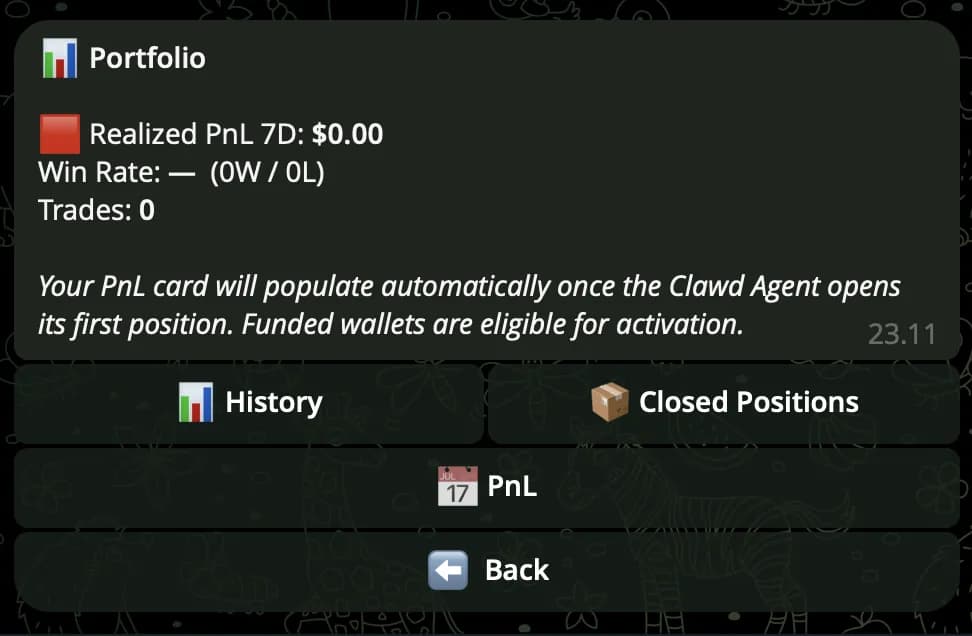
/portfolio — every chain on one screen.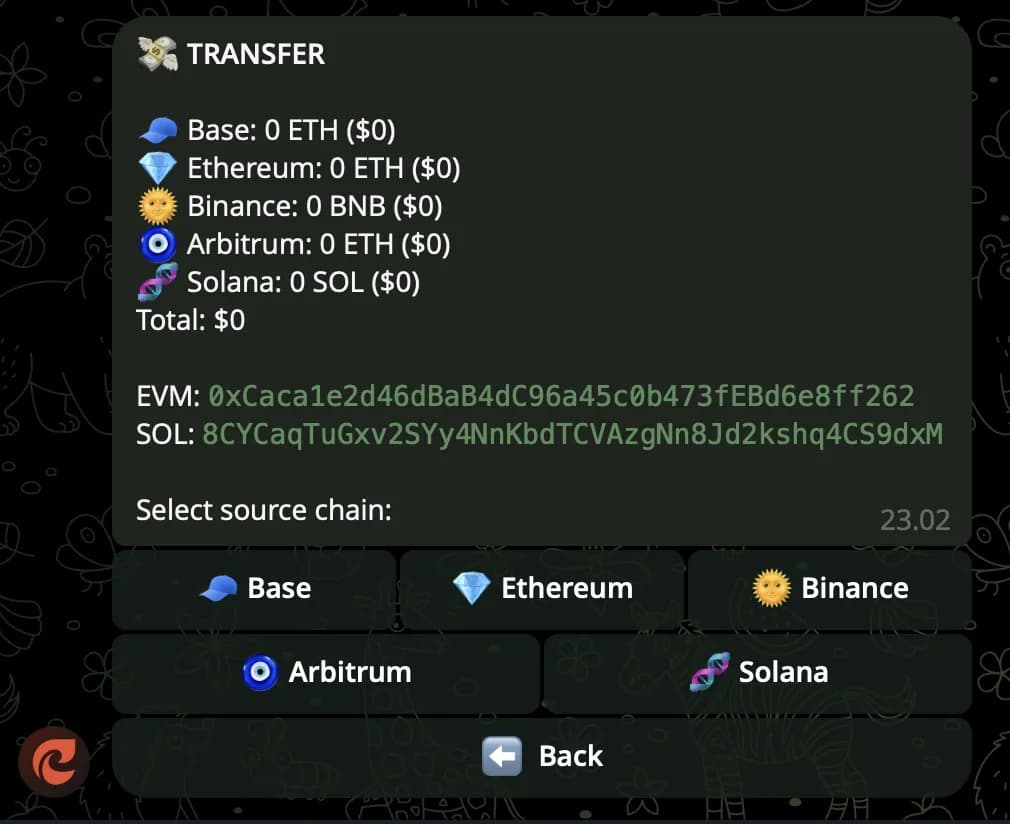
Menu Walkthroughs
Most navigation is tap-driven through inline keyboards — you don't need to remember commands. Here's what each main screen looks like in practice.
Wallet
Fund the bot once, see what you've got.- 1Tap Wallet — see balance, USD value, and copyable address per chain.
- 2Generate a fresh wallet, or import one with a private key / seed phrase.
- 3Send native coin (SOL, ETH, BNB) to your address. Bot confirms in chat with USD value frozen at receipt.
- 4Live multi-chain — one entry, balances on Solana, Ethereum, BSC, Base, and Arbitrum.
Portfolio
Watch the AI work without scrolling charts.- 1Tap Portfolio — see total value across all chains.
- 2Per-asset breakdown shows what's held, average entry, current price, and PnL.
- 3Trade history below — every entry / exit logged with the chain and timing.
- 4Updates automatically — no refresh button needed.
Referral
Get paid when your invites trade.- 1Tap Referral — your link, signups, and earnings.
- 2Pick a custom code (e.g. r_yourname) so the link reads naturally.
- 3Share the link anywhere — Twitter, Discord, group chats.
- 4Earnings stream into your wallet whenever an invitee trades through the bot.
Ready to try it?
The fastest way to understand the bot is to open it. Send /start and the menu walks itself.
Open the bot